|
|
| Line 1: |
Line 1: |
| {{DISPLAYTITLE:{{SUBPAGENAME}}}}
| | ## Requirements |
| <main class="v-main" data-booted="true" id="bkmrk-requirements-to-onbo">### Requirements
| |
|
| |
|
| ---
| | To onboard your new Windows device with your Microsoft tenant, the endpoint must have **Windows Pro** installed. |
|
| |
|
| To Onboard your new windows device with your Microsoft tenant you must have an endpoint with <span style="color: rgb(224, 62, 45);">**Windows PRO**</span> installed on it.
| | ## First power on |
|
| |
|
| ### First Power ON
| | > ⚠️ **If available on your tenant.** Please check with your admin whether this option is available. |
|
| |
|
| ---
| | | N° | Task | Comment | |
| | | |---|---|---| |
| <p class="callout warning">If available on your tenant. Please check with your admin if this option is available</p>
| | | 1 | Choose the right region | [[File:Newonboardinglp1.png|400px]] | |
| | | | 2 | Choose the right keyboard | [[File:Newonboardinglp2.png|400px]] | |
| <div class="v-main__wrap"><div class="container pl-5 pt-4 container--fluid grid-list-xl"><div class="layout row"><div class="flex page-col-content xs12 lg9 xl10 order-xs2"><div class="contents"><div><figure class="table"><table style="width: 100%;"><tbody><tr><td style="width: 5.07886%;">N°</td><td style="width: 22.6783%;">Task</td><td style="width: 72.2429%;">Comment</td></tr><tr><td style="width: 5.07886%;">1</td><td style="width: 22.6783%;">Choose the right region</td><td style="width: 72.2429%;">[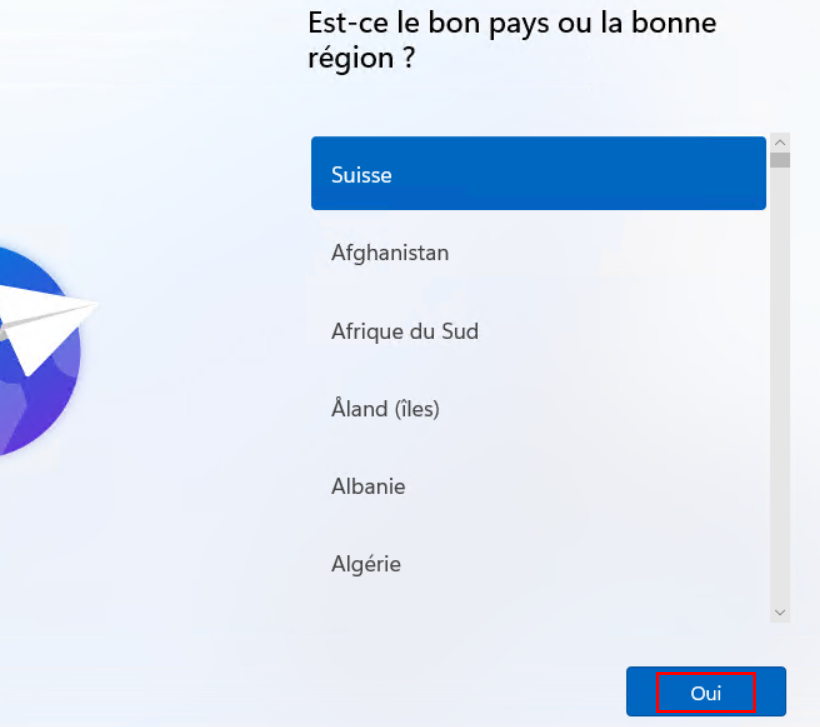](https://wiki.m365docs.ch/uploads/images/gallery/2025-11/scaled-1680-/c0fxpC81nujw1aAn-newonboardinglp1-png.png)</td></tr><tr><td style="width: 5.07886%;">2</td><td style="width: 22.6783%;">Choose the right keyboard</td><td style="width: 72.2429%;">[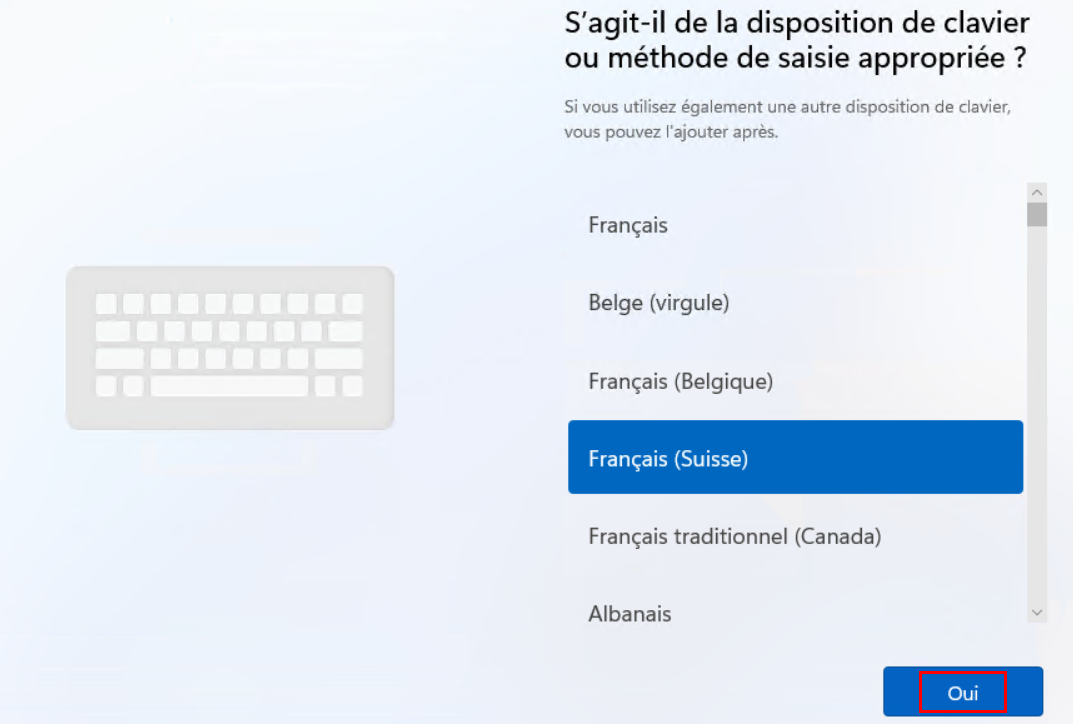](https://wiki.m365docs.ch/uploads/images/gallery/2025-11/scaled-1680-/OPpFo4B3fM2Bvle5-newonboardinglp2-png.png)</td></tr><tr><td style="width: 5.07886%;">3</td><td style="width: 22.6783%;">Accept terms</td><td style="width: 72.2429%;"> </td></tr><tr><td style="width: 5.07886%;">4</td><td style="width: 22.6783%;">Name your Computer</td><td style="width: 72.2429%;">→ check with your admin system if you have a naming convention to respect</td></tr><tr><td style="width: 5.07886%;">5</td><td style="width: 22.6783%;">Choose the work and school configuration</td><td style="width: 72.2429%;">[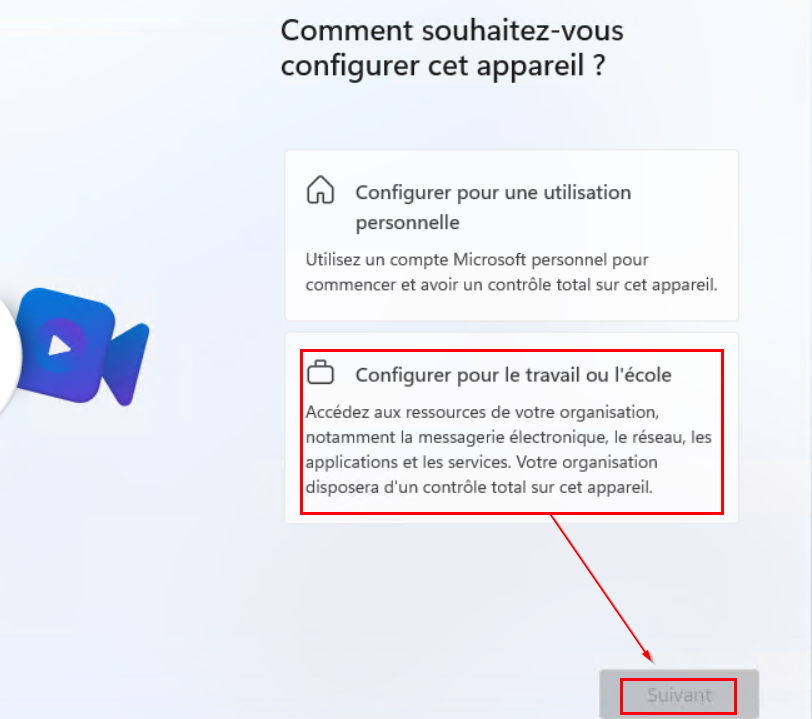](https://wiki.m365docs.ch/uploads/images/gallery/2025-11/scaled-1680-/hZNA6bc7AhuNKGZB-newonboardinglp3-png.png)</td></tr><tr><td style="width: 5.07886%;">6</td><td style="width: 22.6783%;">Enter your work account and your password</td><td style="width: 72.2429%;">[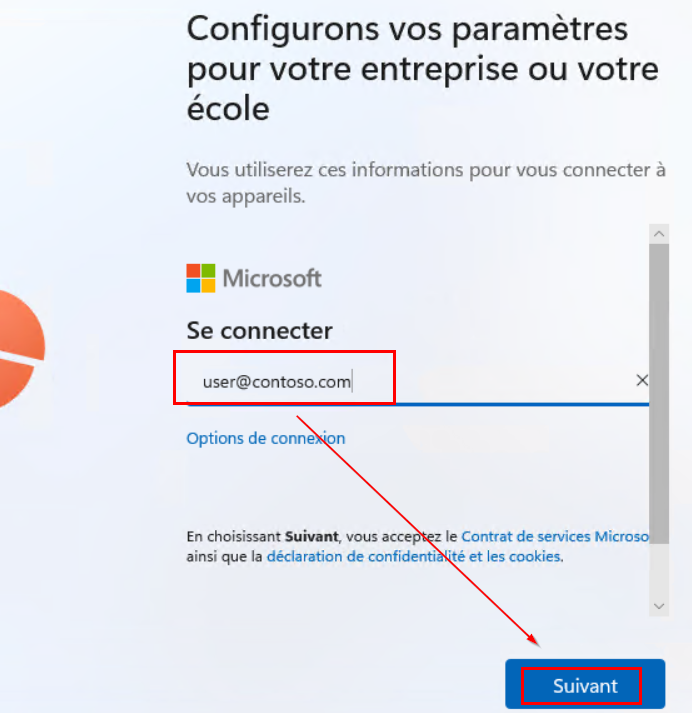](https://wiki.m365docs.ch/uploads/images/gallery/2025-11/scaled-1680-/J7Jnpa3QbmFlmEX7-newonboardinglp4-png.png)</td></tr><tr><td style="width: 5.07886%;">7</td><td style="width: 22.6783%;">Wait the end of the configuration of your new device</td><td style="width: 72.2429%;">[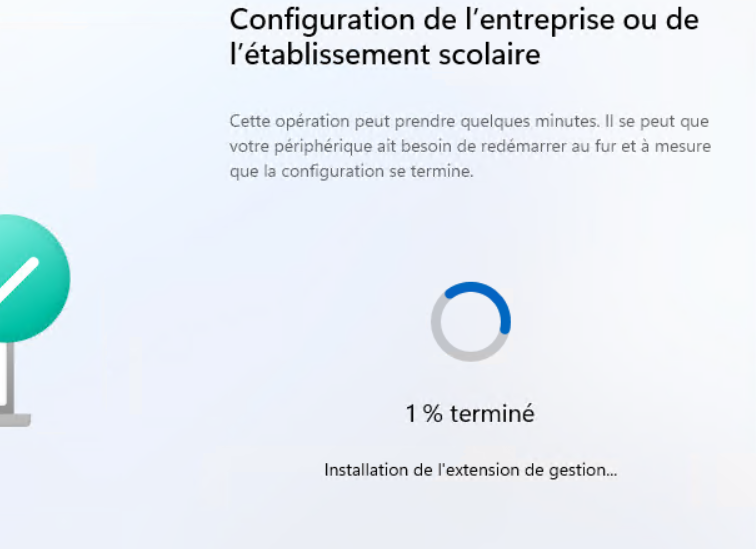](https://wiki.m365docs.ch/uploads/images/gallery/2025-11/scaled-1680-/PQUZMLXNrbHwUIzf-newonboardinglp5-png.png)</td></tr><tr><td style="width: 5.07886%;">8</td><td style="width: 22.6783%;">Personalize your session</td><td style="width: 72.2429%;">Answer of 3 question regarding the Privacy settings</td></tr><tr><td style="width: 5.07886%;">9</td><td style="width: 22.6783%;">\[Optional\] Configure Windows Hello and PIN</td><td style="width: 72.2429%;">→ if configured for your organization</td></tr><tr><td style="width: 5.07886%;">10</td><td style="width: 22.6783%;">END</td><td style="width: 72.2429%;">you will be automatically connected on your desktop, some applications will be automatically installed (you can start to work during this step)</td></tr></tbody></table>
| | | 3 | Accept terms | | |
| | | | 4 | Name your computer | Check with your system admin whether there is a naming convention to respect | |
| </figure></div></div></div></div></div></div></main><footer class="v-footer justify-center v-sheet theme--dark v-footer--inset grey darken-3" data-booted="true" id="bkmrk-"></footer>
| | | 5 | Choose the work and school configuration | [[File:Newonboardinglp3.png|400px]] | |
| Raw text (leve with Ctrl+U)
| | | 6 | Enter your work account and your password | [[File:Newonboardinglp4.png|400px]] | |
| | | 7 | Wait for the end of the device configuration | [[File:Newonboardinglp5.png|400px]] | |
| | | 8 | Personalize your session | Answer the 3 questions regarding the privacy settings | |
| | | 9 | *(Optional)* Configure Windows Hello and PIN | If configured for your organization | |
| | | 10 | End | You are automatically signed in to your desktop. Some applications install automatically, and you can start working during this step. | |
Requirements
To onboard your new Windows device with your Microsoft tenant, the endpoint must have Windows Pro installed.
First power on
⚠️ If available on your tenant. Please check with your admin whether this option is available.
| N° |
Task |
Comment |
| 1 |
Choose the right region |
[[File:Newonboardinglp1.png |
| 2 |
Choose the right keyboard |
[[File:Newonboardinglp2.png |
| 3 |
Accept terms |
|
| 4 |
Name your computer |
Check with your system admin whether there is a naming convention to respect |
| 5 |
Choose the work and school configuration |
[[File:Newonboardinglp3.png |
| 6 |
Enter your work account and your password |
[[File:Newonboardinglp4.png |
| 7 |
Wait for the end of the device configuration |
[[File:Newonboardinglp5.png |
| 8 |
Personalize your session |
Answer the 3 questions regarding the privacy settings |
| 9 |
(Optional) Configure Windows Hello and PIN |
If configured for your organization |
| 10 |
End |
You are automatically signed in to your desktop. Some applications install automatically, and you can start working during this step. |